Bodycam System Requirements
Minimum and recommended specs for 60fps at 1080p, plus config file location and settings notes for Unreal Engine 5.5.
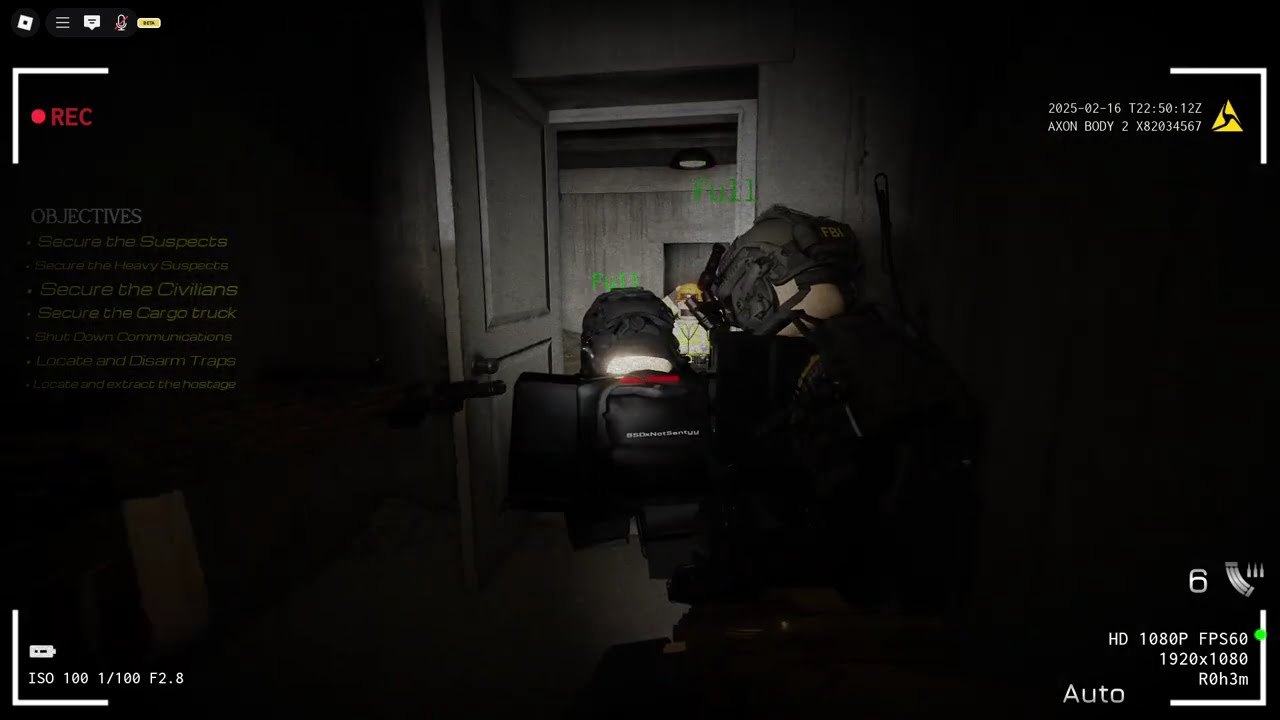
Bodycam is a demanding PC game built on Unreal Engine 5. The November 2025 migration to UE 5.5 pushed the recommended hardware requirements higher than the original Early Access launch. This page covers minimum specifications, recommended specifications, storage and operating system requirements, graphics settings optimization, and config file location for advanced users.
Bodycam is PC-only. It runs on Windows 10 and Windows 11. There is no macOS version, no Linux version, and no console version. The game is not available through Epic Games Store or any other PC launcher — Steam is the only platform.
Why Bodycam Is Demanding
Bodycam uses several Unreal Engine 5 technologies that significantly increase hardware demands compared to conventional shooters. Quixel Megascans provides photorealistic textures and materials for every surface in the game. Nanite virtualization allows the engine to render highly detailed geometry at scale without the traditional performance tradeoffs of LOD systems. Lumen global lighting creates dynamic, physically-accurate light that reacts to environmental changes in real-time.
The bodycam visual aesthetic adds another layer of complexity: chromatic aberration simulates the slight color fringing at the edges of a real camera lens. Film grain adds authentic camera noise. Vignette darkens the corners of the screen. Each of these post-processing effects consumes GPU time that a conventional shooter does not spend.
Understanding why Bodycam is demanding helps when adjusting settings. If you are GPU-bound, reducing post-processing effects (film grain, vignette, chromatic aberration) will have the largest impact. If you are CPU-bound, reducing shadow quality and view distance will help more.
Minimum Specifications
The minimum specifications represent the hardware required to run Bodycam at a playable framerate with reduced visual settings. At minimum specs, expect to run at 30-45fps in most scenarios, with lower dips in graphically intensive scenes.
- Operating System: Windows 10 or Windows 11 (64-bit)
- Processor: AMD Ryzen 7 3700X (8-core, 16 threads) or Intel Core i7-9700K (8-core, 8 threads)
- Memory: 8GB RAM (16GB recommended for Windows 10, as the OS alone consumes 4-6GB)
- Graphics Card: AMD RX 5700 (8GB VRAM) or NVIDIA RTX 2070 (8GB VRAM). Cards with less than 8GB VRAM will struggle with the texture quality required for the Megascans environments.
- Storage: 50GB SSD (SATA III NVMe or better recommended for fastest loading)
- DirectX: Version 12 (DX12 is required, DX11 is not supported)
- Network: Broadband internet connection for multiplayer (Bodycam does not have offline PvP)
At minimum specifications, Bodycam will run but you will need to reduce shadow quality, disable or reduce film grain and vignette, and potentially lower texture quality to maintain playable framerates in Team Deathmatch and larger maps.
Recommended Specifications
The recommended specifications represent the hardware needed to run Bodycam at a stable 60fps at 1080p with high or ultra settings across all game modes and maps.
- Operating System: Windows 10 or Windows 11 (64-bit)
- Processor: AMD Ryzen 7 3800X (8-core, 16 threads) or Intel Core i7-10700K (8-core, 16 threads)
- Memory: 16GB RAM (DDR4-3200 or faster recommended)
- Graphics Card: AMD RX 6600 XT (8GB VRAM) or NVIDIA RTX 3060 (8GB VRAM). The RTX 3060 offers better ray tracing performance for the Lumen lighting system.
- Storage: 50GB NVMe SSD (PCIe 3.0 or 4.0)
- DirectX: Version 12
At recommended specifications, Bodycam should maintain 60fps on high settings in most Deathmatch and Team Deathmatch scenarios. Larger maps like Village and Asylum may require slight settings reductions to maintain 60fps consistently.
Why the UE 5.5 Upgrade Matters for Specs
The November 2025 migration from Unreal Engine 5 to UE 5.5 improved visuals but also increased hardware demands. The specific improvements included enhanced Lumen global lighting for more realistic light behavior in interior spaces, improved Nanite virtualization for better performance with the most detailed geometry, and better temporal upscaling in the engine’s TSR (Temporal Super Resolution) system.
If you were able to run Bodycam at launch with minimum specs, you may need to reduce settings further after the UE 5.5 upgrade to maintain the same framerate. The most common adjustment needed is reducing shadow quality from High to Medium, and reducing post-processing effects.
Graphics Settings to Reduce First
When you need to improve framerate, reduce settings in this order:
-
Shadow quality — Shadows are expensive in UE 5 and Bodycam’s detailed environments create complex shadow maps. Reducing from Ultra to High typically saves 8-12% GPU time with minimal visual impact in motion. Reducing to Medium saves 15-18% GPU time.
-
Post-processing — Film grain, chromatic aberration, and vignette are purely aesthetic. Disabling film grain saves 4-6% GPU time. Disabling vignette saves 1-2%. Chromatic aberration is typically integrated into the TSR pipeline and disabling it saves 2-4%.
-
Texture quality — Reducing from Epic to High has a moderate performance impact (5-8% GPU time) and minimal visual degradation at 1080p. At 1440p or 4K, the impact is more noticeable but so is the visual difference.
-
View distance — Reducing this affects how far buildings and environmental details render. At competitive settings, it has minimal gameplay impact. Saving 4-6% GPU time.
-
Anti-aliasing — TSR (Temporal Super Resolution) is Bodycam’s default anti-aliasing. It is already performance-optimized. Reducing from Epic to High saves 3-5% GPU time with some additional shimmer on fine geometry.
DLSS and FSR Support
Bodycam supports NVIDIA DLSS (Deep Learning Super Sampling) on NVIDIA RTX GPUs and AMD FSR (FidelityFX Super Resolution) on AMD GPUs and NVIDIA GPUs alike. If you have an RTX 3060 or better, enable DLSS Quality mode for a significant framerate boost with minimal visual degradation. On AMD GPUs, FSR Quality mode provides a comparable boost.
DLSS and FSR are not upscalers in the traditional sense — they reconstruct lower-resolution frames using AI to approximate native resolution detail. In Bodycam’s dark interiors, DLSS Quality mode at 1440p outputting to 4K is visually indistinguishable from native 4K in most scenarios while providing 40-60% higher framerate.
CPU Bottlenecking
Bodycam is more CPU-dependent than many shooters because of its network simulation and physics. On maps like Powergun with many active players, CPU bottlenecking is common. If you have a powerful GPU but are still not hitting target framerates, check your CPU utilization in Task Manager during a match. Ryzen 7 3800X and i7-10700K or better is recommended for consistent 60fps at high settings.
Background applications also impact CPU performance significantly. Close unnecessary browser tabs, Discord (use push-to-talkmute instead), streaming software, and any other running applications before playing.
Storage — SSD Required
Bodycam requires 50GB of storage and the developers strongly recommend an SSD over an HDD. The Unreal Engine 5 streaming system is designed for SSD speeds — an HDD will cause longer load times between respawns in Deathmatch, stuttering when entering new areas of large maps, and slower initial loading from the main menu.
An NVMe PCIe 3.0 SSD is the recommended storage type. PCIe 4.0 SSDs offer negligible improvement for Bodycam specifically since the game is not bottlenecked by storage read speed during gameplay, only during loading screens.
FOV and Display Settings
Bodycam has a locked 120-degree horizontal FOV. There is no FOV slider. This is a deliberate design choice to maintain bodycam perspective authenticity — changing the FOV would alter the fish-eye lens simulation that defines the game’s visual identity.
Bodycam supports ultrawide monitors. The 120-degree horizontal FOV applies regardless of aspect ratio, which means ultrawide users will see more on the sides of the screen than standard 16:9 users. This is an advantage in multiplayer — more peripheral awareness — and is not considered cheating.
Bodycam supports HDR displays when Windows HDR is enabled. The game renders in HDR10 when the display supports it. If colors appear washed out, verify that Windows HDR is enabled in display settings and that the game is running in exclusive fullscreen mode.
Config File Location
Advanced users can edit parameters not exposed in the in-game settings menu via the config file:
%LOCALAPPDATA%\Bodycam\Saved\SaveGames\SystemConfig.json
This file contains settings for: raw input configuration, specific input curves, audio device selection, and some graphics settings not exposed in the main menu such as the TSR sharpness value and the film grain intensity multiplier.
Back up this file before editing. Incorrect values can cause crashes or unexpected behavior. The game’s launch arguments can also be modified through Steam’s launch options for additional performance tuning such as forcing DX12 or limiting background CPU cores.
Frequently Asked Questions
Quick answers to the questions Bodycam operators search most before deploying.
What are the minimum specs for Bodycam?
Minimum: Ryzen 7 3700X or i7-9700K, RX 5700 or RTX 2070, 8GB RAM, Windows 10/11, 50GB SSD. Expect reduced visual settings at this level.
What specs do I need for 60fps at 1080p?
Recommended: Ryzen 7 3800X or i7-10700K, RX 6600 XT or RTX 3060, 16GB RAM, 50GB SSD. This should hit 60fps on high/ultra settings.
Does Bodycam support DLSS or FSR?
Yes. Bodycam supports NVIDIA DLSS on RTX GPUs and AMD FSR on AMD and NVIDIA GPUs. Enable DLSS Quality mode on RTX 3060 or better for 40-60% higher framerate.
Is an SSD required for Bodycam?
The developers strongly recommend an SSD. HDD is not officially supported and will cause longer load times and stuttering on large maps.
Can I adjust the FOV in Bodycam?
No. Bodycam has a locked 120-degree horizontal FOV. This is a deliberate design choice to maintain bodycam perspective authenticity.
Where is the Bodycam config file?
At %LOCALAPPDATA%\Bodycam\Saved\SaveGames\SystemConfig.json. It contains advanced settings not in the main menu. Back up before editing.